There are few things more frustrating than settling in for a movie, an online game, or a late-night work session, only for your internet connection to vanish into thin air. If you’ve ever found yourself asking, “why my WiFi disconnects every night,” you’re not alone. This common and often perplexing issue can disrupt your evening routine and leave you scrambling for solutions. The good news is that while the causes can be varied, most nightly WiFi disconnections are identifiable and fixable. From hidden router issues to invisible network interference, we’ll explore the root causes of your internet woes and provide a comprehensive guide to restoring stable, uninterrupted connectivity to your home.
The Mystery of the Nightly Disconnect: Why Your WiFi Keeps Dropping
Understanding why your WiFi keeps dropping at night requires a bit of detective work. Many factors, both internal to your home network and external, can contribute to this frustrating pattern. Let’s delve into the most common culprits.

Is Your Router Taking a Midnight Nap? Router-Related Issues
Your router is the heart of your home network, and often, it’s the first place to look when connectivity issues arise, especially if they’re consistent every night.
-
Overheating: Just like any electronic device, routers can overheat, especially if they’re constantly running and poorly ventilated. If your router is tucked away in a cabinet or covered by clutter, it might be struggling to dissipate heat. As temperatures rise over the course of the day, particularly if your home is warm, an overheated router can become unstable and disconnect.
-
Outdated Firmware: Router firmware is the operating system that runs your device. Manufacturers regularly release updates to improve performance, fix bugs, and enhance security. If your router’s firmware is old, it might struggle with modern network demands, leading to instability and nightly drops. Many routers can be set to update automatically, but some require manual intervention.
-
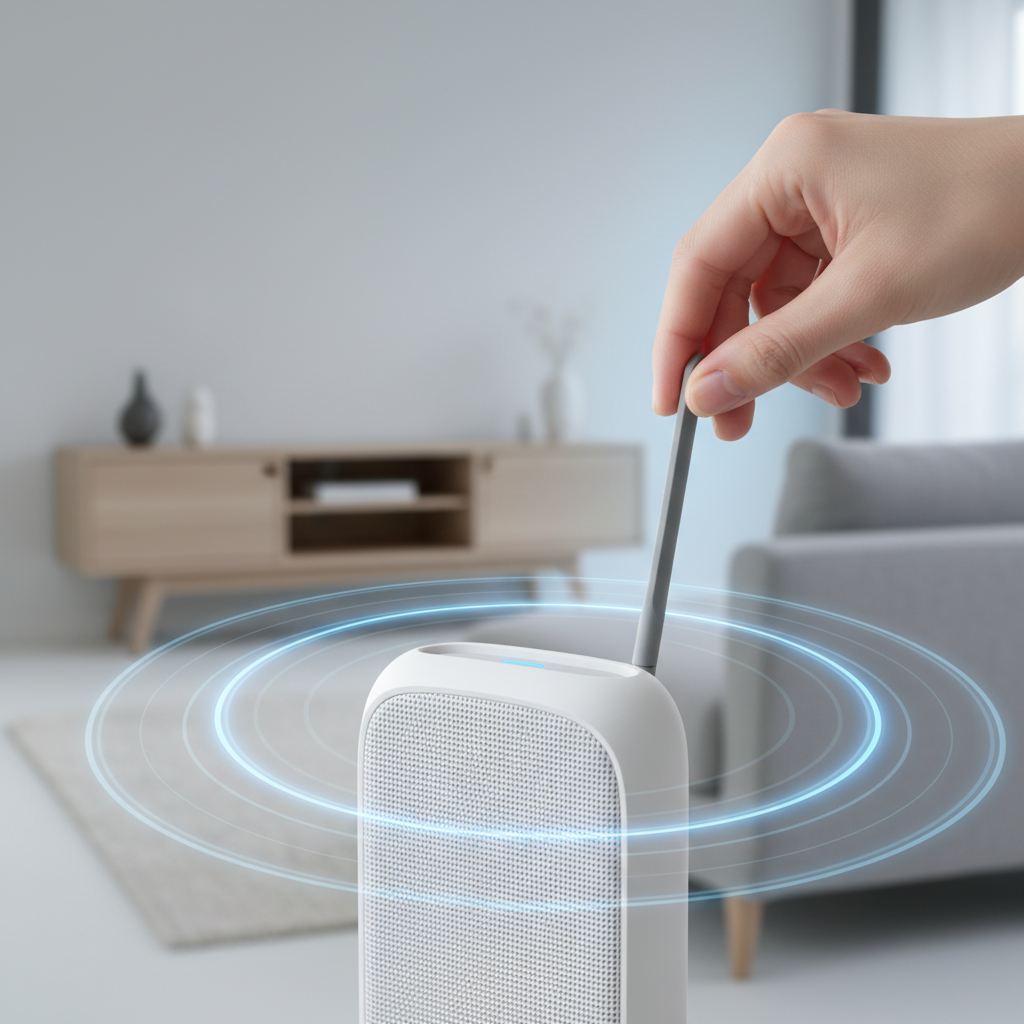
Router Age and Faulty Hardware: Routers, like all electronics, have a lifespan. An older router (typically more than 3-5 years old) may begin to experience hardware degradation, leading to intermittent connectivity. Internal components can wear out, causing inconsistent performance, especially under heavier loads that might occur at night when more devices are active.
-
Scheduled Reboots: Some routers, or even your Internet Service Provider’s (ISP) system, might be programmed to perform automatic reboots or maintenance tasks at specific times, often in the late hours when usage is typically lower. While this is done to refresh the system and apply updates, it can certainly cause a temporary nightly disconnection.
-
Incorrect Settings: Less common but still possible, certain router settings could contribute to nightly drops. For instance, an overly aggressive power-saving mode or specific DHCP lease time configurations could inadvertently cause devices to lose their connection and struggle to reconnect. Checking settings for stability and performance is crucial for optimal network function.
The Invisible Battle: WiFi Interference and Signal Sag
Your WiFi signal operates on specific radio frequencies, and these frequencies are susceptible to interference from a surprising number of sources, especially in a modern home.
-
Other Electronic Devices: Common household appliances like microwave ovens, cordless phones, baby monitors, and even certain smart home devices (especially those operating on the 2.4 GHz band) can emit radio waves that interfere with your WiFi signal. This interference might be more noticeable at night if these devices are in use or become active.
-
Neighboring WiFi Networks: In densely populated areas, your router might be competing with dozens of other WiFi networks from nearby homes or apartments. If multiple networks are using the same WiFi channel, it creates congestion, similar to traffic on a highway. This can lead to slower speeds and frequent disconnections, particularly during peak evening hours when everyone is online.
-
Physical Obstructions: Walls, floors, large metal appliances, aquariums, and even dense furniture can absorb or reflect WiFi signals, weakening them considerably. If your router’s signal path to your devices is consistently obstructed at night (perhaps by a door being closed or a specific appliance running), it could lead to drops. For more insights on optimizing your signal, Good Housekeeping offers helpful tips for boosting your Wi-Fi signal at home.
-
Distance from Router: The further a device is from the router, the weaker its signal. If some of your devices are on the fringe of your WiFi range, they might maintain a connection during the day when network traffic is lighter but struggle and disconnect reliably at night when your network is under more stress.
Device Dilemmas: When Your Gadgets Are the Culprit
Sometimes, the problem isn’t the router or the network itself, but the devices trying to connect to it.
-
Outdated WiFi Drivers: Just like router firmware, the network drivers on your laptops, desktops, and other smart devices need to be kept up-to-date. Old or corrupted drivers can cause devices to lose their WiFi connection periodically, especially under specific usage patterns.
-
Power Saving Settings: Many laptops, tablets, and smartphones have power-saving features that can put the WiFi adapter to sleep or reduce its performance when the device is idle or running on battery. These settings can sometimes be overly aggressive, causing the device to disconnect from WiFi and struggle to reconnect.
-
Too Many Connected Devices: Every router has a limit to the number of devices it can efficiently manage simultaneously. If your household has numerous smartphones, tablets, smart TVs, streaming devices, smart speakers, and other IoT gadgets all active at night, your router might become overwhelmed, leading to dropped connections for some or all devices. Discover how to effectively manage a multitude of smart devices without compromising your network’s stability.
-
Malware or Software Issues: Rarely, but still a possibility, malware or buggy software on a specific device could be causing network instability for that device, or even creating network traffic that affects others.
Behind the Scenes: ISP and External Network Factors
Beyond your home network, your Internet Service Provider (ISP) and external infrastructure can also play a role in nightly disconnections.
-
Scheduled ISP Maintenance: Similar to router reboots, ISPs often schedule maintenance work on their infrastructure during off-peak hours, which typically fall in the middle of the night. This maintenance can cause temporary service interruptions or instability.
-
Faulty Outdoor Cabling or Equipment: Issues with the physical cables connecting your home to the ISP’s network, or problems with their outdoor equipment (like a utility box), can lead to intermittent service. These problems might manifest more consistently at night due to various factors, including increased network load or even temperature changes.
-
Modem Problems: While often combined with your router, a standalone modem can also fail or become unstable. If your modem is faulty, it can lead to a loss of internet connection entirely, not just WiFi. Understanding the distinction between a modem and a router is key to effective troubleshooting.
Environmental Echoes: How Surroundings Affect Your Signal
Environmental factors, though often overlooked, can sometimes contribute to nightly internet issues.
-
Temperature Fluctuations: While most modern electronics are designed to withstand a range of temperatures, extreme or rapid temperature changes (e.g., a cold night after a hot day) can sometimes affect the performance of network equipment, particularly older devices or those already prone to overheating.
-
Electrical Grid Instability: Minor power fluctuations, brownouts, or surges on the electrical grid, more common in some areas, can momentarily disrupt power to your router and modem, causing them to reboot or lose sync. While often imperceptible to household lights, sensitive electronics can react.
Step-by-Step Troubleshooting: Regaining Your Nightly Connection
Now that we’ve covered the potential causes, let’s look at practical steps you can take to diagnose and fix your nightly WiFi issues.
The First Line of Defense: Simple Resets and Checks
Always start with the basics, as they often resolve the most common problems.
-
Reboot Your Router and Modem: This is the golden rule of network troubleshooting. Unplug both your modem and router from their power outlets, wait for at least 30 seconds, then plug the modem back in. Wait for all its lights to stabilize (usually 1-2 minutes), then plug in your router and wait for its lights to stabilize. This clears temporary glitches and refreshes the connection.
-
Check All Cables: Ensure all Ethernet cables connecting your modem to your router, and your router to any wired devices, are securely plugged in and not damaged. A loose or faulty cable can be a surprisingly common cause of intermittent issues.
-
Inspect for Overheating: Feel your router. Is it unusually hot? Ensure it has plenty of ventilation. Move it away from heat sources and clear any objects obstructing its vents. Consider placing it in an open area rather than an enclosed cabinet.
Optimizing Your Router: Settings for Stability
Logging into your router’s administration interface allows you to adjust settings that can significantly improve stability.
-
Update Firmware: Access your router’s admin page (usually by typing its IP address, like 192.168.1.1, into your browser). Look for a “Firmware Update” or “System Update” section. Download and install the latest firmware available from the manufacturer’s website. If you’re unsure, consult your router’s manual or the manufacturer’s support page.
-
Change WiFi Channel: Interference from neighboring networks can often be mitigated by changing your WiFi channel. Use a WiFi analyzer app (available for smartphones) to identify less congested channels in your area (usually channels 1, 6, or 11 for 2.4 GHz, or higher channels for 5 GHz). In your router settings, navigate to the “Wireless Settings” and manually select a less used channel.
-
Adjust WiFi Band: If your router supports both 2.4 GHz and 5 GHz bands, consider which devices are on which band. The 2.4 GHz band offers wider coverage but is more susceptible to interference. The 5 GHz band is faster and less prone to interference but has a shorter range. If your nightly drops are affecting devices closer to the router, try connecting them to the 5 GHz band. For devices further away, stick to 2.4 GHz, but ensure it’s on a clear channel.
-
Disable Scheduled Reboots: If your router has a setting for scheduled reboots, you might find it in the “Administration” or “System Tools” section. You can disable this feature or adjust the reboot time to a less inconvenient hour if it’s the cause of your nightly drops.
Minimizing Interference: Clearing the Airwaves
Taking steps to reduce electromagnetic interference can dramatically improve your WiFi’s consistency.
-
Relocate Router: Place your router in a central location in your home, away from walls, large metal objects, and other electronics that could cause interference. Ideally, it should be elevated and in an open space. Learn more about strategic router placement for optimal performance.
-
Distance from Interfering Devices: Keep your router as far away as possible from microwaves, cordless phones, baby monitors, and large appliances.
-
Consider a Mesh WiFi System: If your home is large or has many dead spots, a mesh WiFi system can extend coverage and reduce reliance on a single, potentially weak, signal from one router.
Device Tune-Up: Ensuring Your Gadgets Play Nicely
Don’t forget to check the individual devices that are experiencing disconnections.
-
Update Device Drivers: On your computer, go to Device Manager (Windows) or System Information (Mac) to check your WiFi adapter’s drivers. Visit the manufacturer’s website to download and install the latest versions.
-
Adjust Power Saving Settings: For laptops, check your power management settings. In Windows, go to Device Manager > Network Adapters > (Your WiFi Adapter) > Properties > Power Management, and uncheck “Allow the computer to turn off this device to save power.” On Macs, ensure “Put hard disks to sleep when possible” is not causing issues, and keep your software updated.
-
Limit Concurrent Devices: If you suspect too many devices are overwhelming your router, try disconnecting some non-essential devices at night to see if the stability improves.
When to Call for Backup: Contacting Your ISP
If you’ve tried all the above steps and your WiFi still disconnects every night, it’s time to involve your Internet Service Provider.
-
Report the Issue: Explain the consistent nightly disconnections. They can check their network for outages, maintenance in your area, or issues with your line quality. They can also remotely test your modem and router.
-
Request a Modem/Router Swap: If your equipment is old or they detect a fault, ask for a replacement modem or router. Sometimes, their provided hardware is the weakest link.
-
Schedule a Technician Visit: If remote diagnostics don’t yield results, insist on a technician visit to check the wiring and equipment outside your home.
Proactive Measures for Long-Term WiFi Stability
To prevent future nightly disconnects, consider these long-term strategies for a robust home network.
Investing in Better Hardware
If your router is several years old, upgrading to a newer, more powerful model can make a world of difference. Look for routers with features like:
-
Dual-band or Tri-band: Offers more channels and better band steering for devices.
-
WiFi 6 or 6E: The latest standards provide faster speeds, better efficiency, and improved handling of multiple devices.
-
Quality of Service (QoS): Allows you to prioritize traffic for specific applications (e.g., streaming, gaming) to ensure critical services remain stable.
Strategic Router Placement
Re-evaluating your router’s position can have a monumental impact on signal strength and stability. Avoid corners, basements, and utility closets. Aim for a central, elevated, and open spot in your home.
Regular Maintenance and Updates
Make it a habit to periodically check for and install router firmware updates, as well as driver updates for your main devices. A healthy network is a well-maintained network.
FAQs about Nightly WiFi Disconnections
Q: Can too many devices cause WiFi to disconnect at night?
A: Yes, absolutely. Every router has a finite capacity to handle concurrent connections and data traffic. If your household has numerous devices actively streaming, downloading, or gaming simultaneously at night, your router can become overwhelmed, leading to slower speeds, lag, and ultimately, disconnections for some or all devices. Older or lower-end routers are particularly susceptible to this.
Q: Does weather affect WiFi?
A: Directly, no, weather does not typically affect your indoor WiFi signal (the connection between your router and devices). However, extreme weather conditions like severe storms, heavy rain, or snow can impact the outdoor infrastructure that delivers internet to your home (e.g., fiber optic cables, coaxial lines, power lines). If the internet coming into your house is unstable due to weather, your WiFi will naturally also be affected.
Q: How often should I restart my router?
A: It’s generally a good practice to reboot your router every few weeks or once a month. This clears its memory, resolves minor glitches, refreshes its connection to your ISP, and can improve overall performance and stability. If you’re experiencing issues, a reboot should always be your first troubleshooting step.
Q: Is it normal for WiFi to drop at the same time every night?
A: While not “normal” in a healthy network, a consistent nightly drop at the same time is a strong indicator of a scheduled event. This could be an automatic reboot set in your router’s firmware, scheduled maintenance by your ISP, or even a specific interfering device (like an automatic smart appliance) that activates at a regular time. This consistency helps narrow down the potential causes.
Q: What’s the difference between a modem and a router, and how do they affect my WiFi?
A: A modem’s job is to translate the internet signal from your ISP (e.g., cable, fiber, DSL) into a usable format for your home network. A router, on the other hand, creates a local network within your home, allowing multiple devices to connect to that internet signal, either wirelessly (WiFi) or via Ethernet cables. If your modem isn’t receiving a stable signal from your ISP, your router won’t have any internet to distribute, and your WiFi will drop. If your modem is working but your router is faulty, your devices may connect to the router but won’t get online.
Conclusion
Experiencing nightly WiFi disconnections is undoubtedly frustrating, but by systematically troubleshooting the potential causes, you can often restore stability and enjoy seamless connectivity. Whether the culprit is an overheating router, channel interference from a neighbor’s network, or an outdated device driver, the solutions are often within your reach. Arm yourself with these tips, tackle your home network issues head-on, and reclaim your uninterrupted evenings online.